 SmartSort
Any cluttered folder, tidied in seconds
SmartSort is a Mac app for the folders where everything piles up. Point it at Downloads or your Desktop and it proposes a tidy set of folders. You check every move before anything happens, and one click puts it all back.
Requires macOS 26.5 or later. The vault needs a Mac with Touch ID. Everything runs on your Mac.
Look first, then move
Choose a folder
Downloads, the Desktop, or the one you keep meaning to deal with. SmartSort only opens folders you pick.
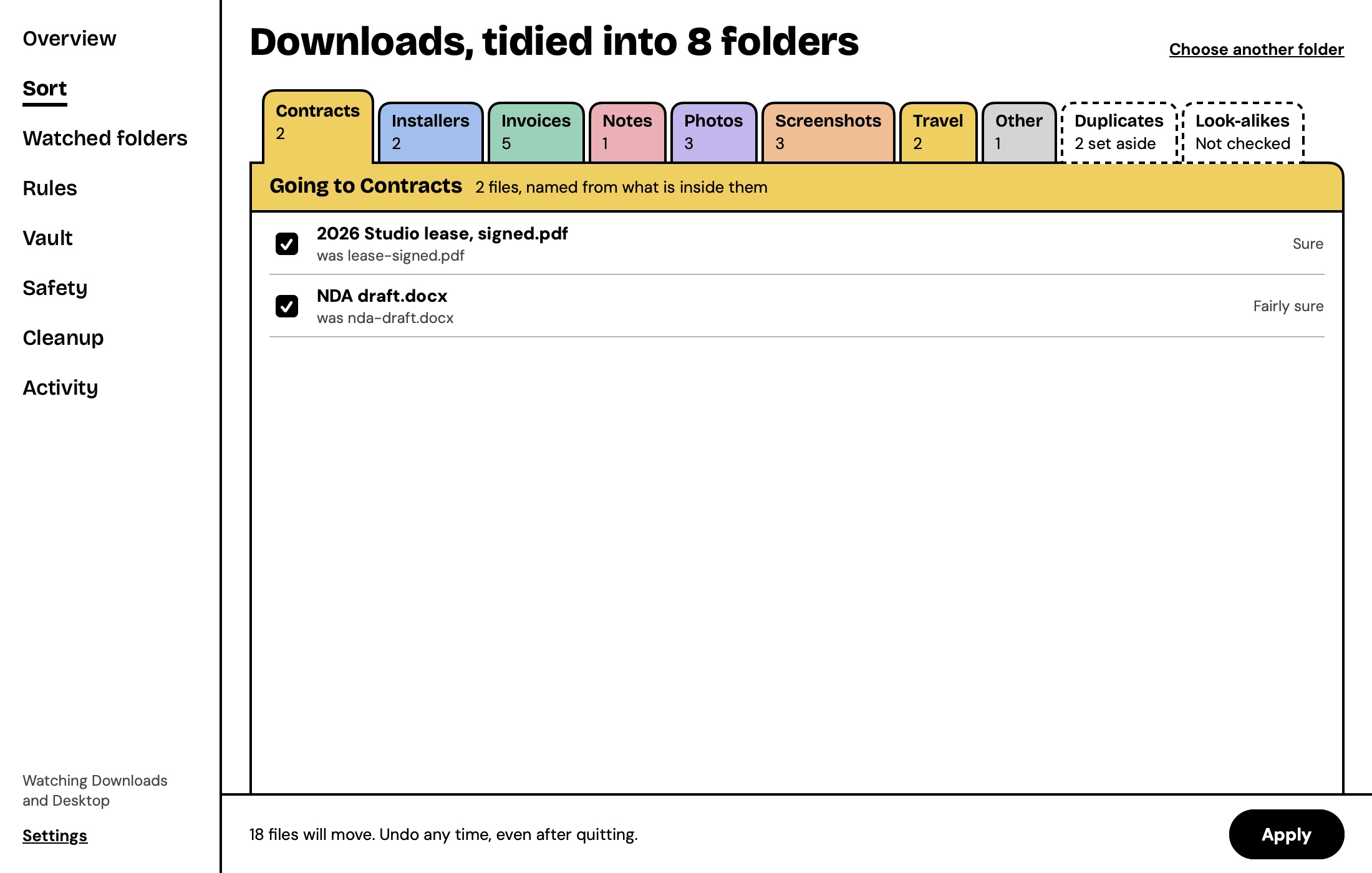
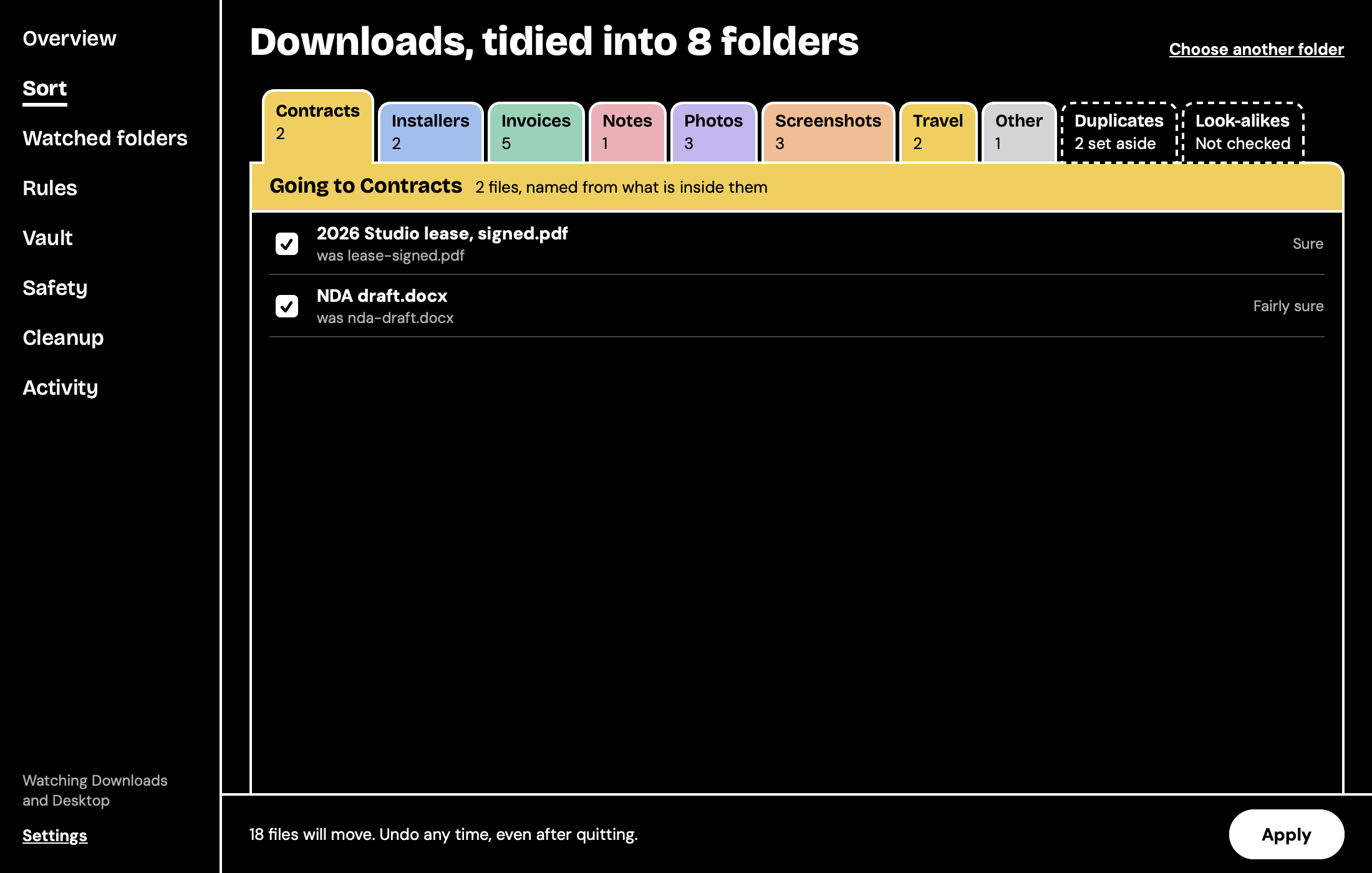
Check the plan
Files are grouped into folders by what they are, and paperwork is named from what is written in it, such as "2026-03 Acme Hardware Invoice". Untick anything you would rather leave.
Apply, or don't
Nothing moves until you say so. Every sort is listed in Activity and can be undone, even after quitting.
Sorting and naming by content use Apple Intelligence on your Mac. Without it, SmartSort still sorts by file type, sets duplicates aside, watches folders and guards sensitive files.
New files file themselves
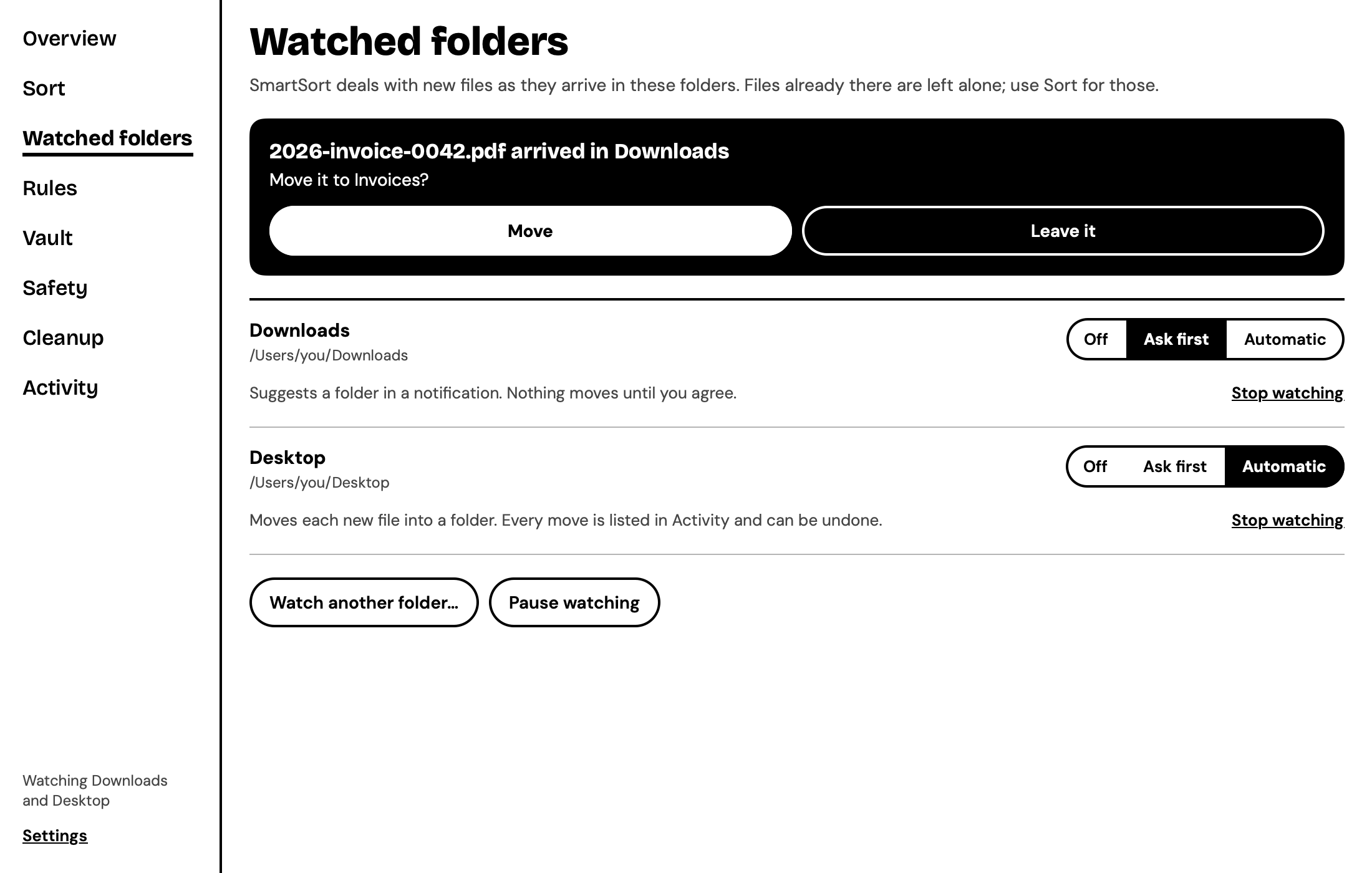
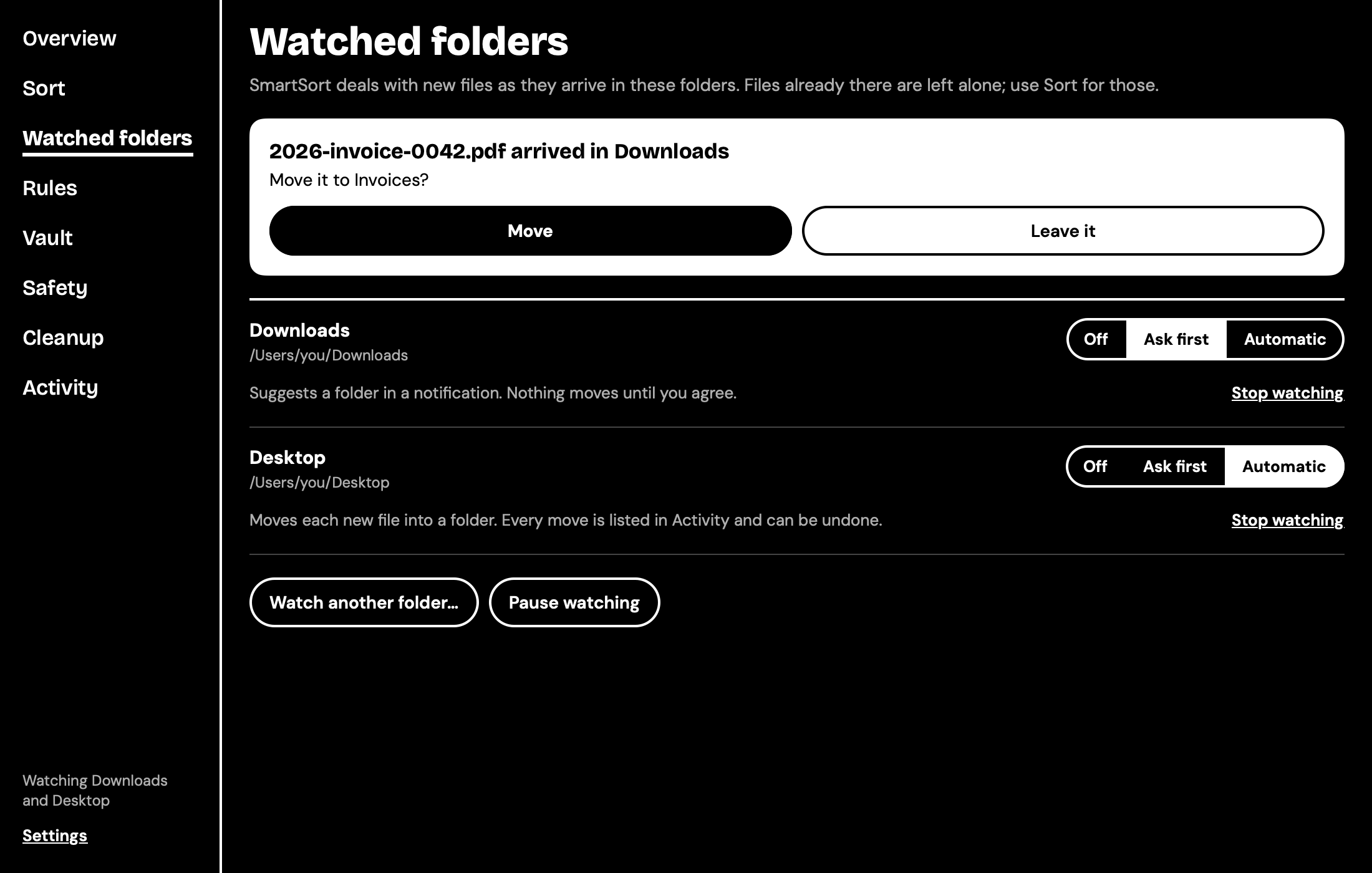
Watch a folder and each new file is dealt with as it arrives. Set a folder to Ask first and a notification suggests where the file should go; set it to Automatic and it is moved for you. Files that were already there are never touched.
Write your own rules for your own kinds of file: "if its name contains invoice and it ends in .pdf, move it to Taxes". Rules run before SmartSort chooses, and you can try any file against them to see what would happen without moving it.
One page for what needs you
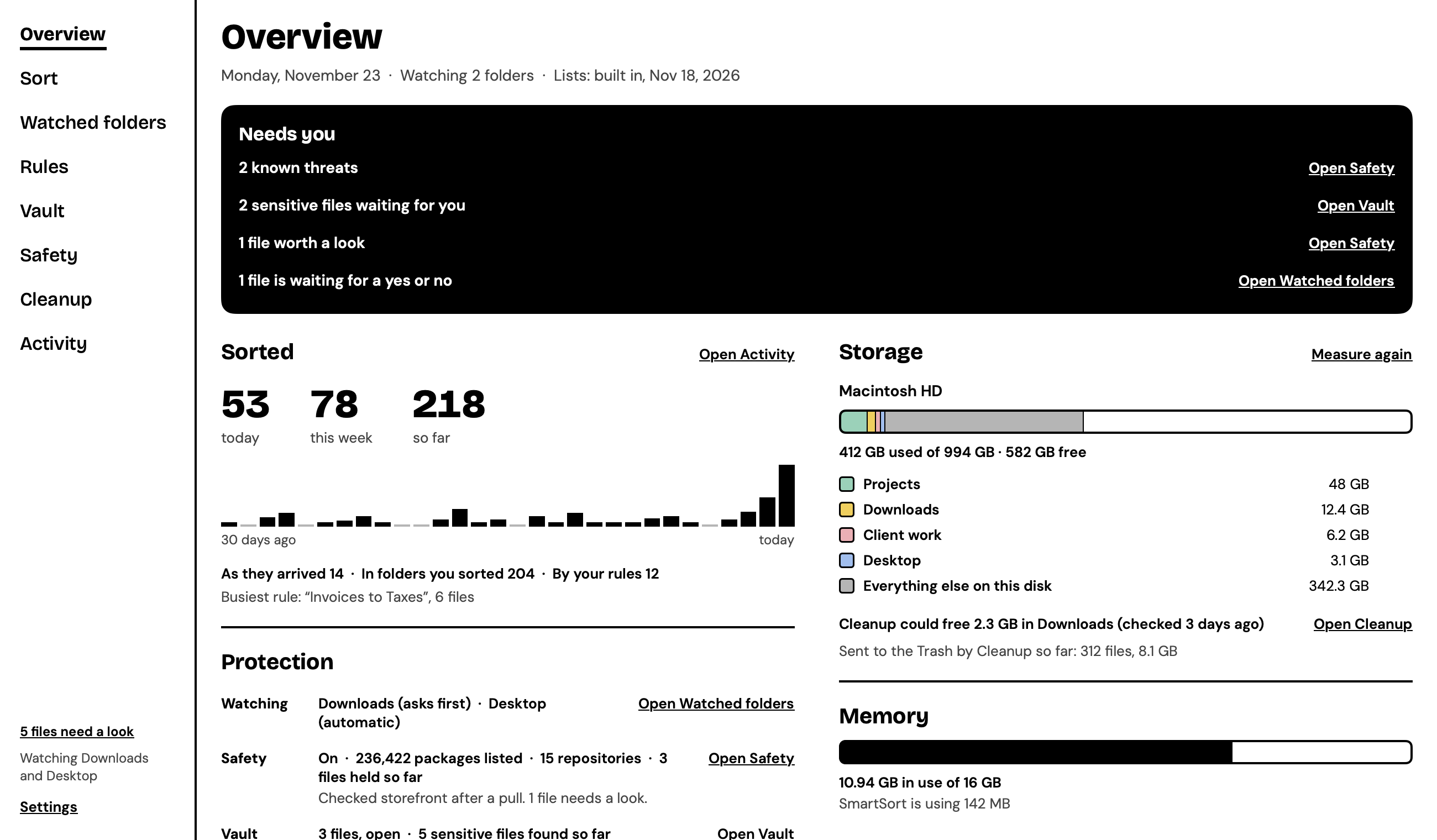
SmartSort opens on an overview: what is waiting for a decision, how many files have been sorted today and this week, how full the disk is and how much of it each of your folders takes, and what is being watched and checked.
Checks what arrives for known developer threats
Each file that lands in a watched folder is compared with lists of npm and Python packages reported as malicious, and with the marks particular attacks leave behind. SmartSort looks inside .zip, .tgz and .vsix archives and reads package.json and lockfiles, matching names and versions exactly. A file that matches stays where it landed, unsorted, until you decide.
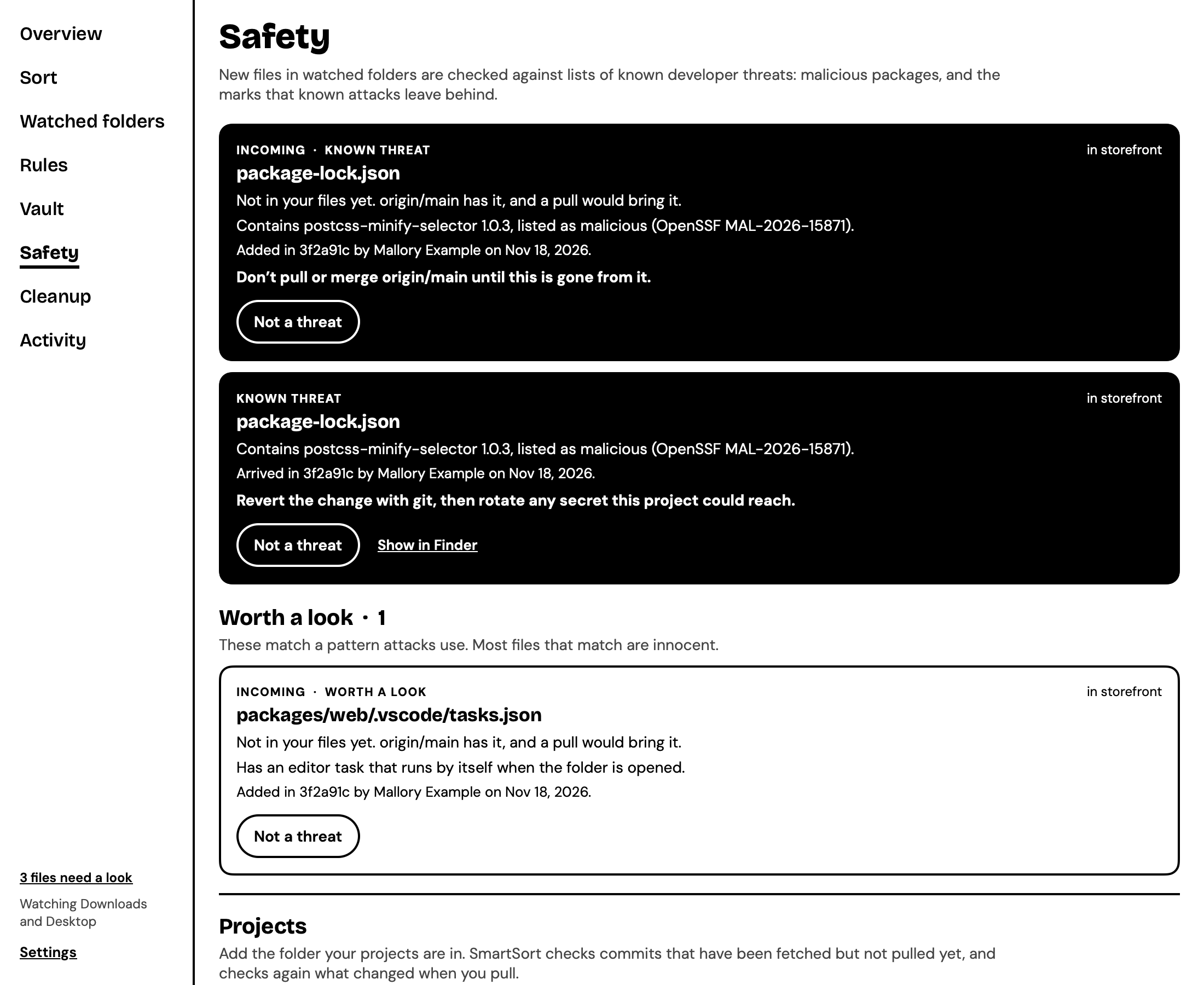
A warning before you pull. Add the folder your projects are in and SmartSort also looks at commits your editor has fetched but you have not pulled. It reads them straight from git's own store, names the commit that would bring a listed package, and checks again after the pull. It never runs git and never contacts the remote.
This is a check against lists of what is already known, not a guarantee. A file that matches nothing has not been proven safe.
Keys and backup codes, locked away
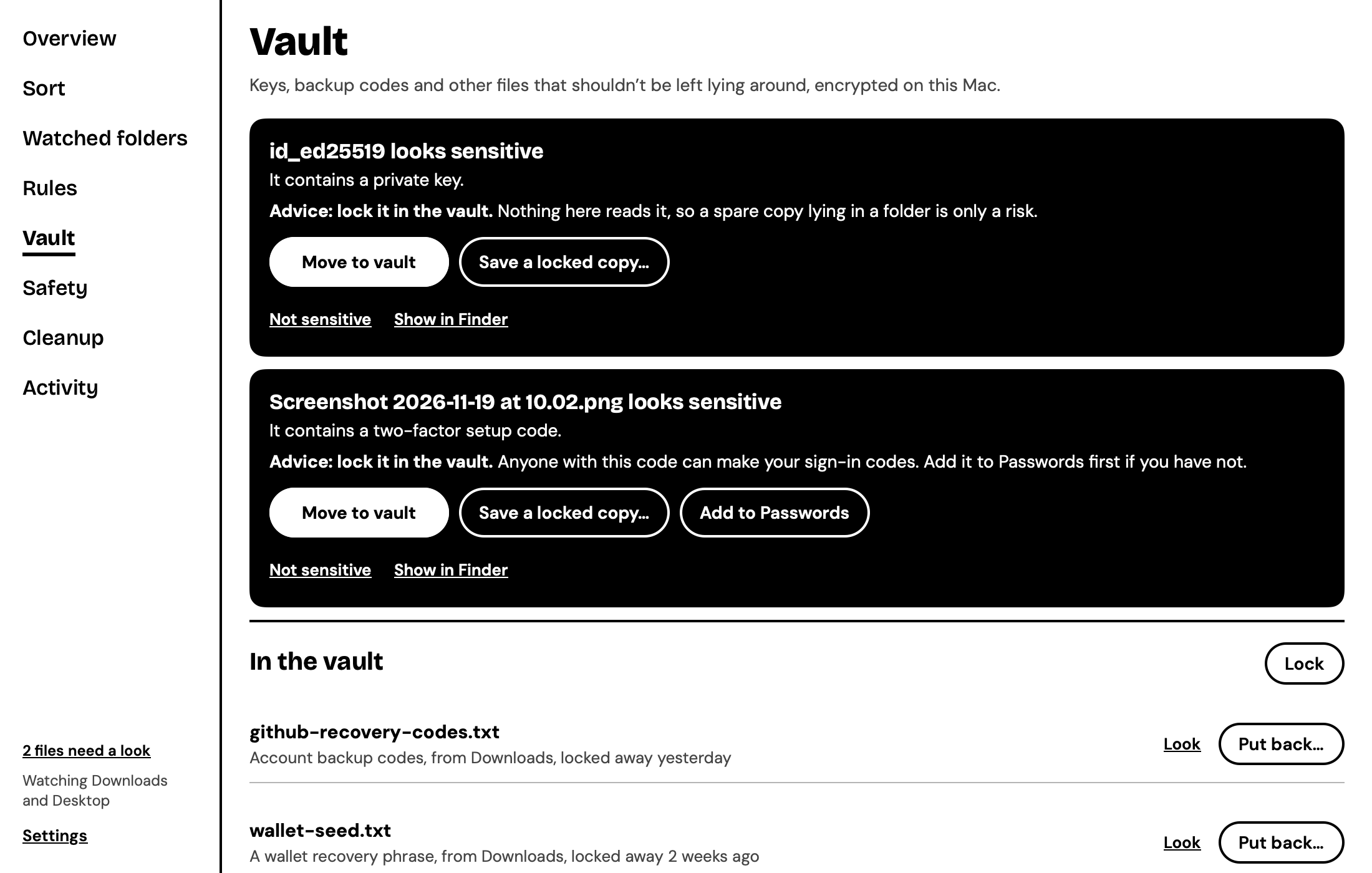
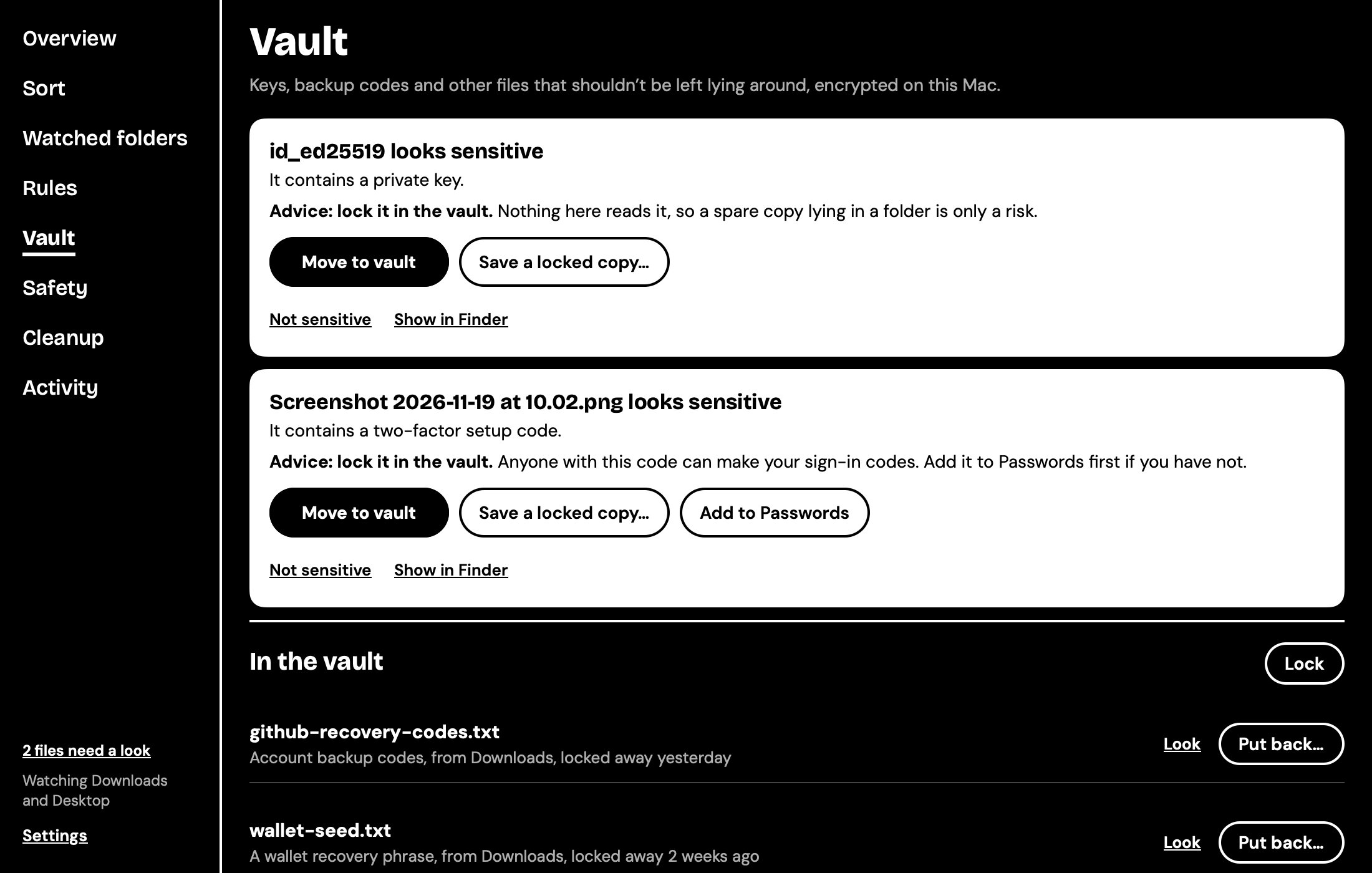
SmartSort notices the files that should not be left lying around: private keys, wallet recovery phrases, account backup codes, password exports and two-factor setup codes, including QR codes in screenshots. It holds them back from sorting and offers to lock them in a vault, encrypted on your Mac, that opens with Touch ID or your Mac password.
Finds what you can let go of
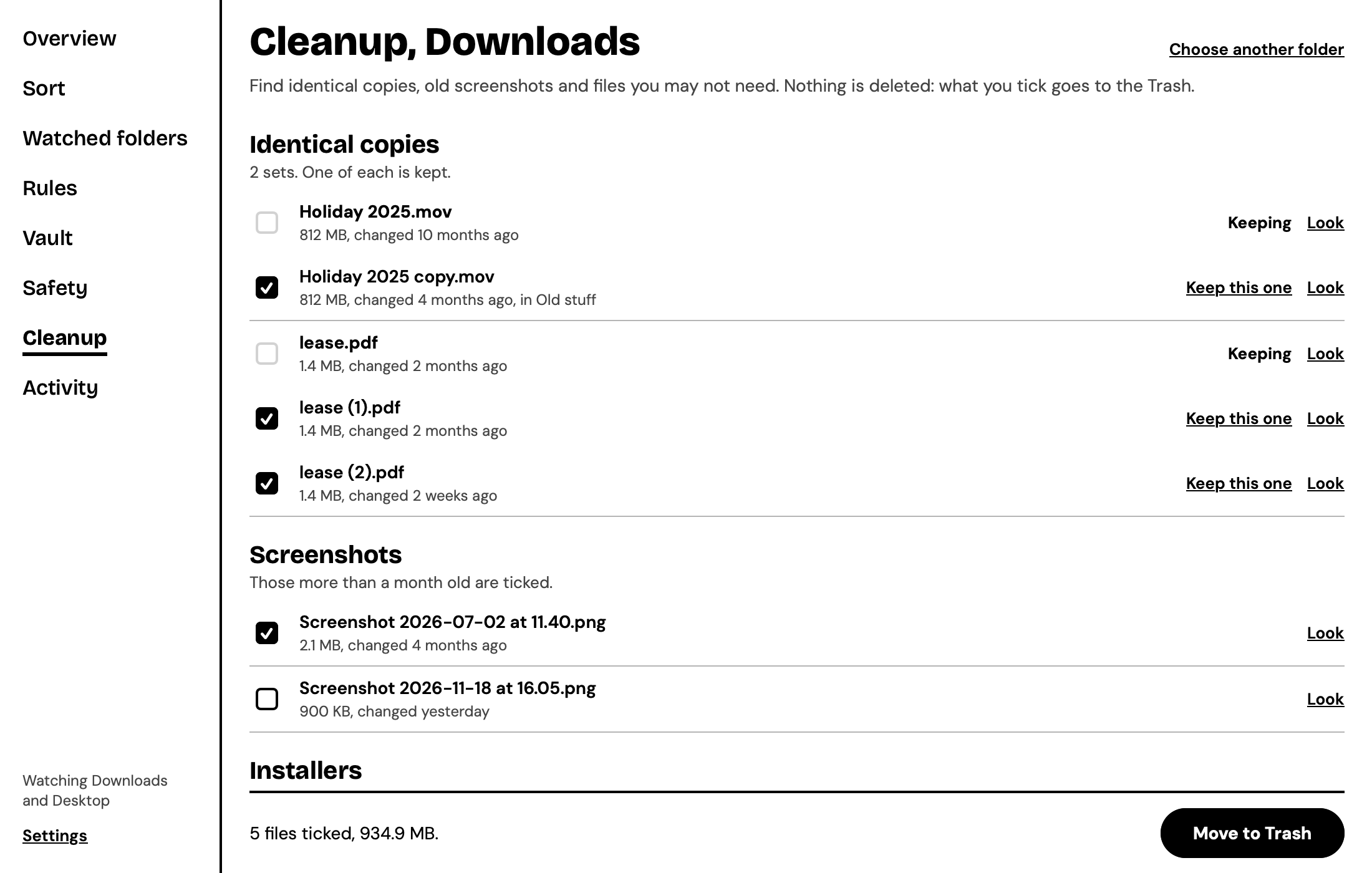
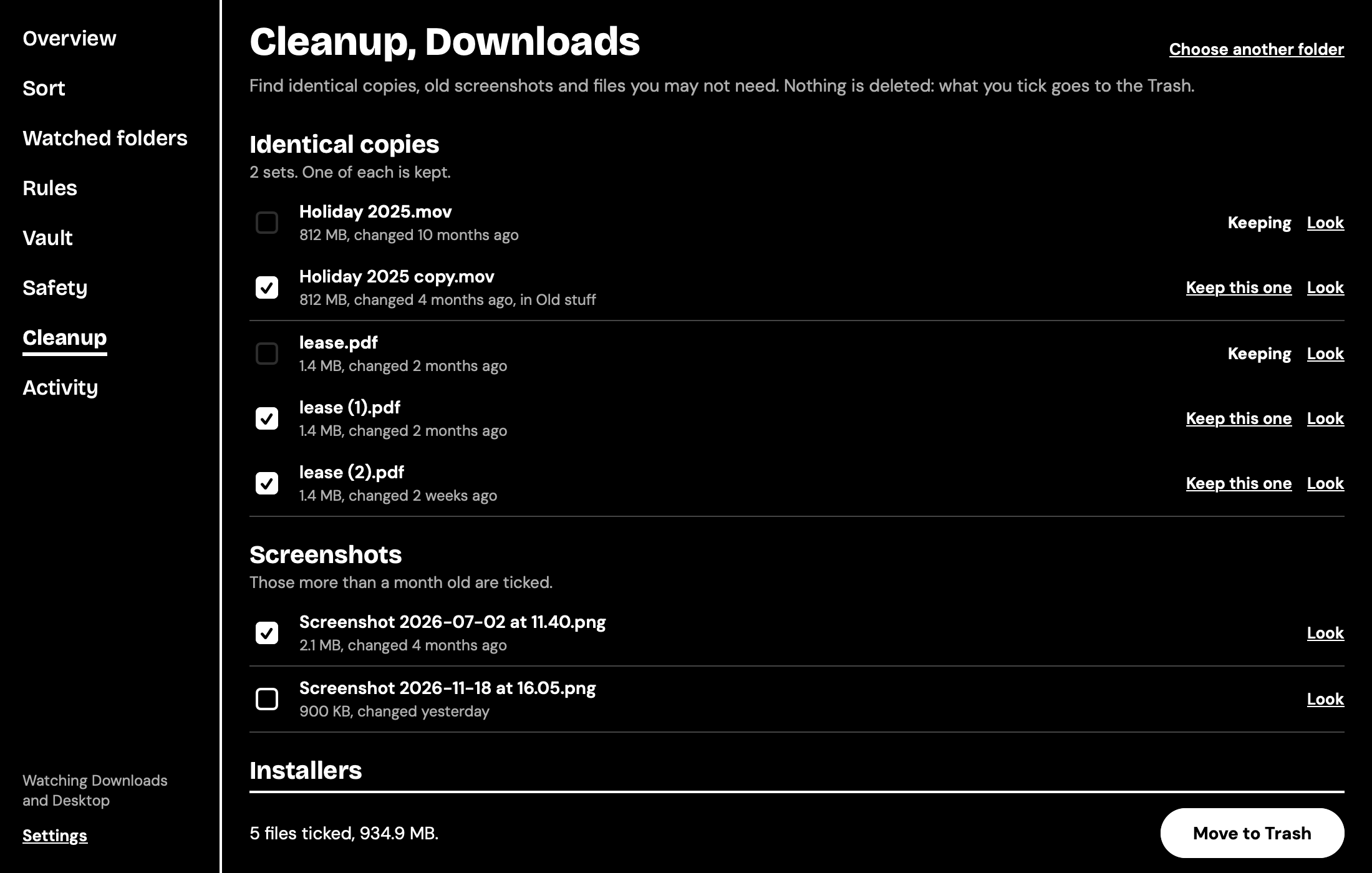
Cleanup finds identical copies, old screenshots, installers you are done with, very large files and files untouched for over a year. What you tick goes to the Trash; nothing is deleted. For people who write software, an optional Developer cleanup finds build folders and caches that tools make again by themselves.
Works with the rest of your Mac
Quiet in the background
SmartSort can open without a window when you log in, live in the menu bar with its Dock icon hidden, and keep watching after you close it. Each is a switch in Settings, and Quit Completely always stops it.
Menu bar
Recent moves and Undo are one click away.
Shortcuts, Siri and Spotlight
Sort a folder, undo the last sort, open the vault or pause watching.
Listening to recordings
Voice memos, audio and video can be filed by what is said in their first minute. Apple's speech recognition does the listening on your Mac. Off until you turn it on.
Locked copies
Save any flagged file as a password-protected archive you can keep anywhere.
Light and dark
Follows your Mac's appearance.
Nothing about your files leaves this Mac
No account, no tracking
There is no sign-in, no analytics and no crash reporting. SmartSort collects no data.
Only the folders you choose
SmartSort opens a folder only after you pick it. Project folders are opened read-only.
On-device intelligence
Reading what is inside a file to name it and choose its folder is done by the model built into macOS, on your Mac.
One connection, and only if you ask
If you turn on list updates, SmartSort downloads threat lists from GitHub; GitHub sees your IP address and the time, nothing else. Nothing about your files, their fingerprints or the packages you use is ever sent. List updates are off until you turn them on.
Nothing is deleted
Anything SmartSort removes goes to the Trash, and it never empties the Trash.
What it doesn't do
- It cannot stop
git pull. It warns about commits that are already fetched, and checks again after a pull. - The threat check compares against lists. A file that matches nothing has not been proven safe, and a listing can be wrong.
- Disk images and installer packages are not opened, and a file that could not be read is listed as not checked, never as clean.
- It does not look inside
node_modulesor the other folders tools install and build into. - Moving a file to the vault puts the original in the Trash. Earlier backups may still hold the unprotected copy.
Questions
Will it move files without asking?
Not when you sort a folder: you see every move first and choose Apply. A watched folder set to Automatic does move new files as they arrive; set it to Ask first if you would rather approve each one. Either way, Activity lists every move and Undo puts the files back.
Do I need Apple Intelligence?
No. With it, SmartSort names and files things by what is inside them. Without it, it sorts by file type, sets duplicates aside, watches folders, guards sensitive files and runs the safety checks.
What happens to a file that matches a threat list?
It stays where it landed, unsorted, and shows on the Safety page until you choose Move to Trash or Not a threat. Nothing is deleted or moved for you. A file inside a project is never trashed by SmartSort: the advice is to revert the change with git and rotate any secret the project could reach.
Can it stop me pulling malicious code?
No, and it says so. A sandboxed Mac App Store app cannot run git or install hooks. What it can do is read the commits your editor has already fetched and warn you before you pull, then check again afterwards.
What if I lose access to the vault?
The vault opens with Touch ID or your Mac password. The first time you use it, SmartSort shows a recovery phrase that gets you back in if that ever fails. Write it down somewhere that is not this Mac.
How do I get help?
Email ooluwatobiiloba@gmail.com.